2 Setting up your computer
You will need to have both R and RStudio installed on your computer to complete this workshop. Although it is not imperative that you have the latest version of RStudio installed, you will need to have at least version 4.0 of R installed . Please note that you might need administrative permissions to install these programs. After installing them, you will also need to install some R packages too. Finally, you will also need to download the data for this workshop.
2.1 R
The R statistical computing environment can be downloaded from the Comprehensive R Archive Network (CRAN). Specifically, you can download the latest version of R (version 4.2.3) from here: https://cloud.r-project.org. Please note that you will need to download the correct file for your operating system (i.e. Linux, Mac OSX, Windows).
2.2 RStudio
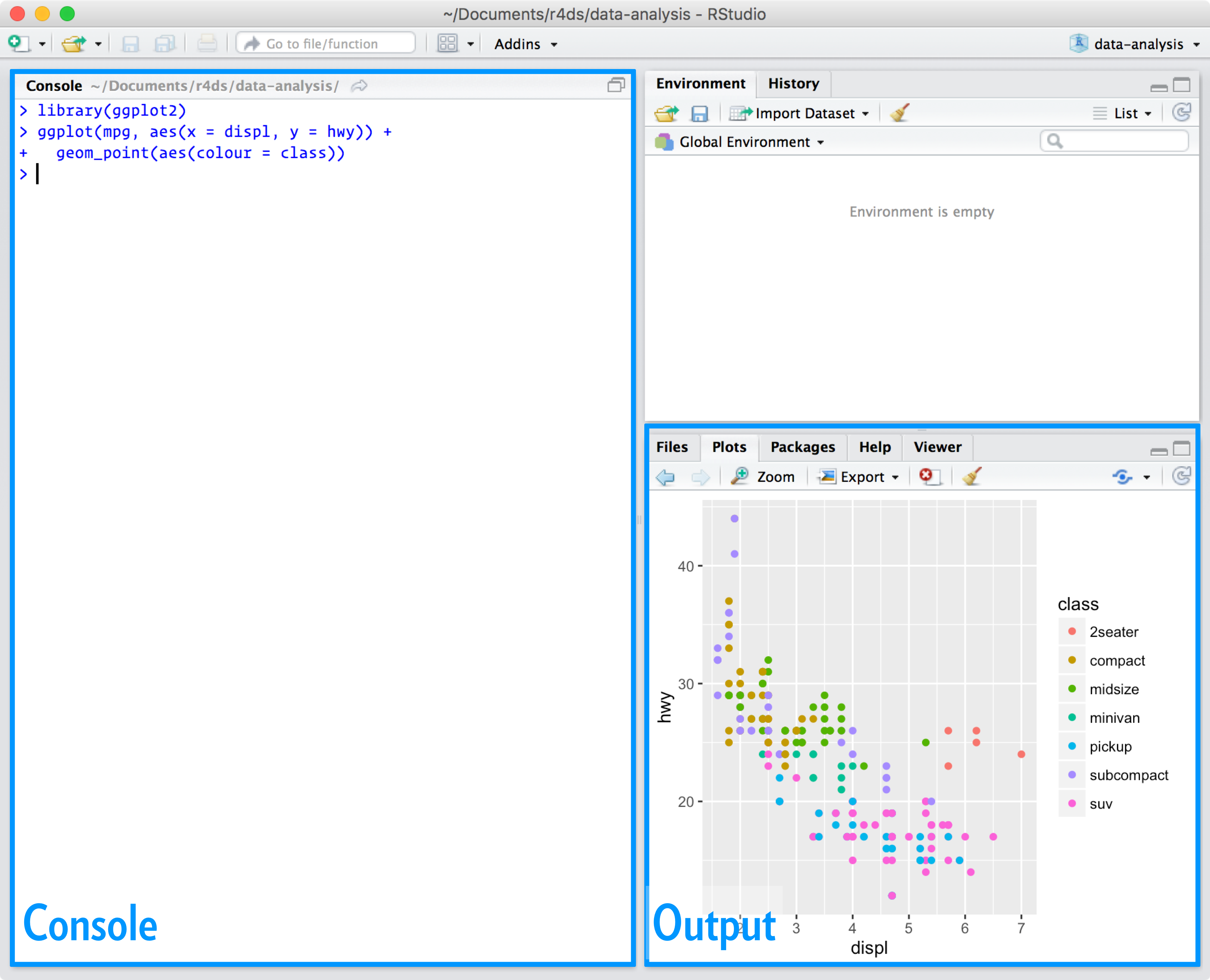
RStudio is an integrated development environment (IDE). In other words, it is a program that is designed to make your R programming experience more enjoyable. During this workshop, you will interact with R through RStudio—meaning that you will open RStudio to code in R. You can download the latest version of RStudio here: http://www.rstudio.com/download. When you start RStudio, you will see two main parts of the interface:
You can type R code into the Console and press the enter key to run code.
2.3 R packages
An R package is a collection of R code and documentation that can be installed to enhance the standard R environment with additional functionality. Currently, there are over fifteen thousand R packages available on CRAN. Each of these R packages are developed to perform a specific task, such as reading Excel spreadsheets, downloading satellite imagery data, downloading and cleaning protected area data, or fitting environmental niche models.
Navigating
R
R has such a diverse ecosystem of R packages, that the question is almost always not “can I use R to …?” but “what R package can I use to …?”.
During this workshop, we will use several R packages. To install these R packages, please enter the code below in the Console part of the RStudio interface and press enter. Note that you will require an Internet connection and the installation process may take some time to complete.
install.packages(c("sf", "terra", "dplyr", "sp", "rgeos", "rgdal", "raster",
                   "units", "tidyr", "stringr", "readr", "transformr", "data.table",
                   "ggplot2", "RColorBrewer", "rnaturalearth", "rnaturalearthdata",
                   "ggtext", "lwgeom", "patchwork", "gganimate", "animation"))

# Optional packages
  # library(ncdf4)
  # library(ncdf4.helpers)
  # library(PCICt)
  # library(magrittr)
  # library(exactextractr)
  # library(nngeo)
2.4 Create an R Project
In this workshop, we’ll use an R project to efficiently organize your work and enhance collaboration. An R project links directly to a directory on your computer, streamlining file management and teamwork.
Using an R project is a best practice for reproducible research because it keeps all your work within a single directory. Think about your current workflow: where do you import, clean, analyze data, create graphs, and produce reports? Are you jumping between multiple tools like Excel, JMP, and Google Docs? With an R project, everything can be done and updated in one place — RStudio — streamlining your entire process.
Example:
R project set up
- In the File menu, select New Project
- Click New Directory
- Click New Project
- Under Directory name type:
ofc_workshop_{USERNAME} - Leave Create Project as subdirectory of: set to
\~ - Click Create Project
2.4.1 Paths & Working Directories
Two types of paths: absolute paths and relative paths
Absolute path: starts with the root of your file system and ““locates files from there. The absolute path to this ebook in my computer is:
/Users/ibrito/Desktop/NACECC_workshop/Relative paths: starts from some location in your file system that is below the root. R refer to the location where the relative path starts as our working directory.
Important
RStudio projects automatically set the working directory to the directory of the project.
Ditch the
setwd()
once you start working in projects you should basically never need to run the setwd() command. If you are in the habit of doing this, stop and take a look at where and why you do it.